
🥇 How to Use GPT Image 2: The Ultimate Step-by-Step Guide (2026)
Last Updated: May 14, 2026 | Reading Time: 10 min
Struggling with weirdly spelled text, distorted fingers, or flat lighting in your AI-generated images? Enter GPT Image 2.
As the latest breakthrough in text-to-image technology, GPT Image 2 has revolutionized how creators, marketers, and designers produce high-fidelity visuals. But knowing about it and knowing how to use GPT Image 2 effectively are two different things.
In this comprehensive guide, we will walk you through the exact steps, prompt blueprints, image editing workflows, and advanced strategies to master OpenAI Image 2. Let’s dive in.
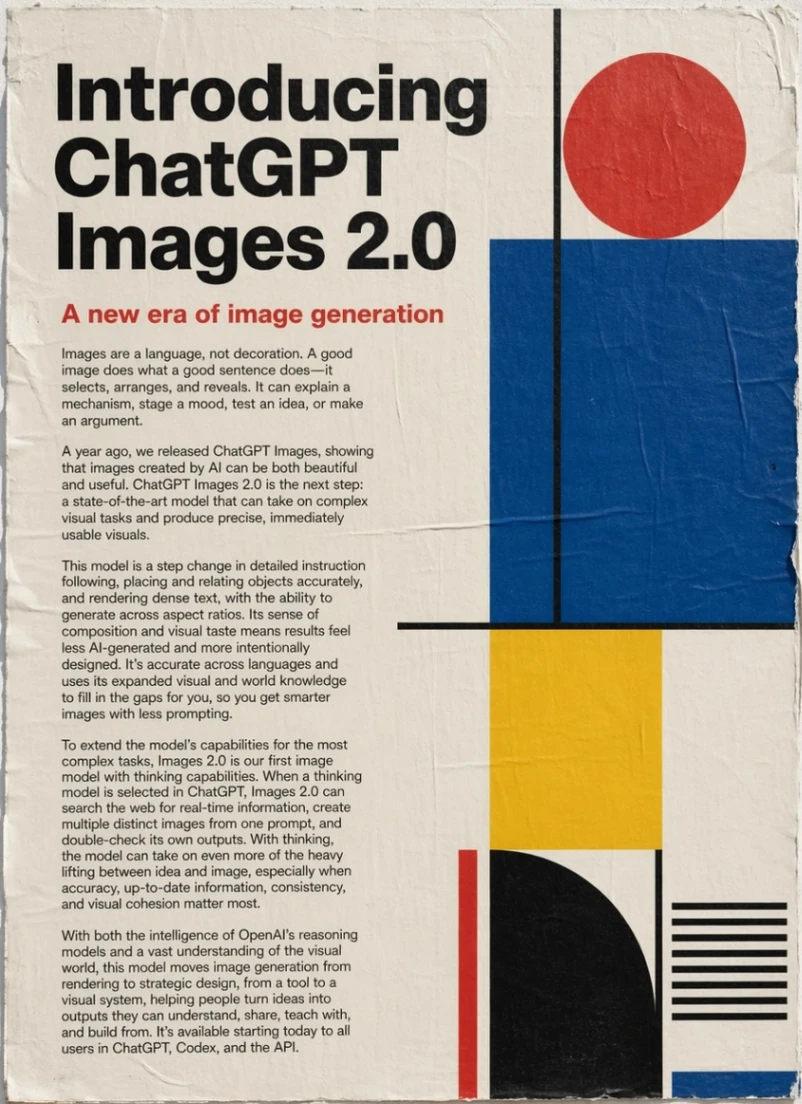
1. What Makes GPT Image 2 Different?
Before diving into the "how-to," it's crucial to understand why GPT Image 2 is a massive leap forward from previous generation models:
- Flawless Text Rendering: You can finally generate images with accurate typography. Whether it's a neon sign, a cafe menu, or a product label, the text is legible and correct.
- Nuanced Prompt Adherence: It understands complex, multi-sentence instructions without dropping details in the background.
- Superior Handling of Dense Compositions and Small Elements: Small text, iconography, navigation bars, data tables, and intricate layouts (that used to break previous models) now render cleanly and consistently, making it ideal for designers and product teams.
- Exceptional UI/UX Mockup Capabilities: GPT Image 2 is one of the best models for high-fidelity UI/UX mockups. It delivers realistic app screens, dashboards, and interfaces with accurate layouts, spacing, icons, and readable text across iOS, Android, and web styles.
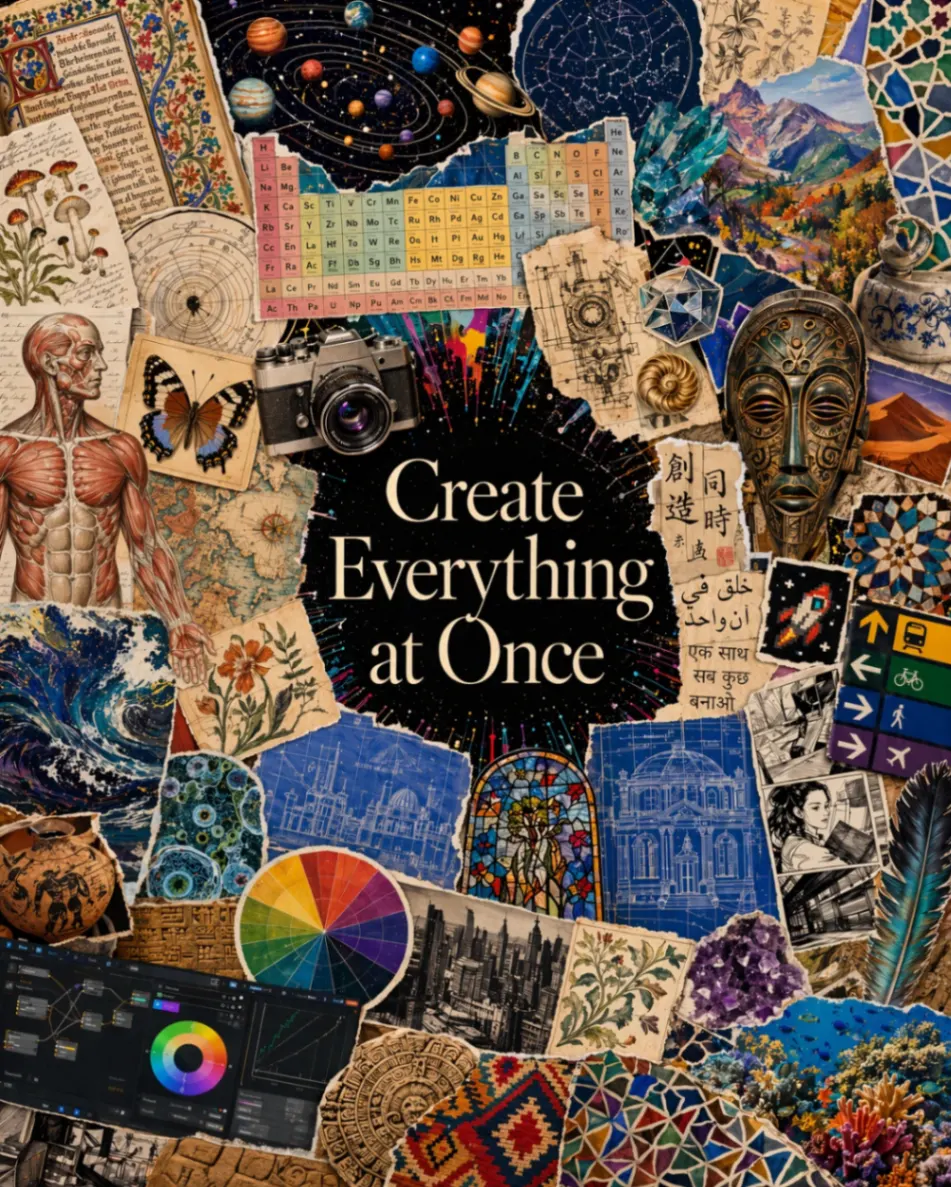
2. How to Access and Use GPT Image 2 (Where to Start)
There are a few ways to access this powerful model, but your specific needs and workflow will determine the best path. Here is a quick comparison to help you choose:
Where Should You Use GPT Image 2?
| Feature | Option A: ChatGPT Plus (Official) | Option B: GPTImg2AI.com (Creator Workflow) |
|---|---|---|
| Interface | Chat-based | Visual Designer Dashboard |
| Generation Limits | Strict daily caps | Flexible credit system |
| Aspect Ratio Setup | Requires text prompting | 1-Click UI Buttons (16:9, 9:16, 1:1) |
| Image Management | Buried in chat history | Cloud gallery & project folders |
| Best For | Casual exploration | Professional designers & marketers |
ChatGPT Image 2 official website: https://chatgpt.com/images/
For a seamless, production-ready experience with zero chat-interface clutter, we recommend using GPT Image 2 directly on our platform at GPTImg2AI.com.
3. The Ultimate 5-Step Prompt Blueprint
To get the best results, you need to structure your prompts logically. Here is our battle-tested blueprint:
[Subject] + [Action/Environment] + [Lighting] + [Camera/Style Details] + [Text Content (if any)]
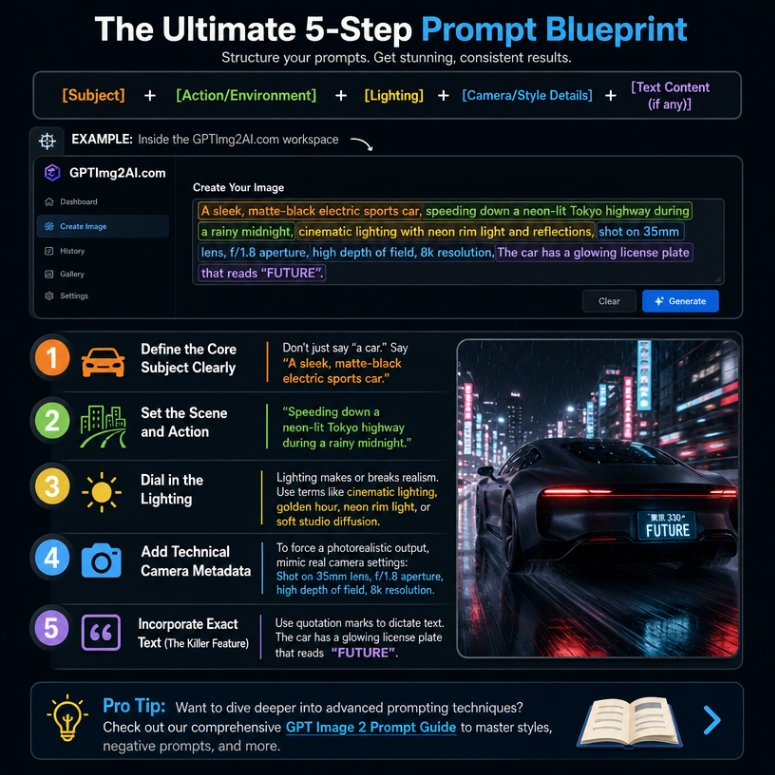
Step 1: Define the Core Subject Clearly
Don't just say "a car." Say "A sleek, matte-black electric sports car."
Step 2: Set the Scene and Action
"Speeding down a neon-lit Tokyo highway during a rainy midnight."
Step 3: Dial in the Lighting
Lighting makes or breaks realism. Use terms like cinematic lighting, golden hour, neon rim light, or soft studio diffusion.
Step 4: Add Technical Camera Metadata
To force a photorealistic output, mimic real camera settings: Shot on 35mm lens, f/1.8 aperture, high depth of field, 8k resolution.
Step 5: Incorporate Exact Text (The Killer Feature)
Use quotation marks to dictate text. The car has a glowing license plate that reads "FUTURE".
💡 Pro Tip: Want to dive deeper into advanced prompting techniques? Check out our comprehensive GPT Image 2 Prompt Guide to master styles, negative prompts, and more.
4. How to Edit Existing Images with GPT Image 2
Generating from scratch is only half the magic. One of the most powerful ways to use GPT Image 2 is for highly precise localized edits (often called inpainting). You don't need Photoshop anymore.
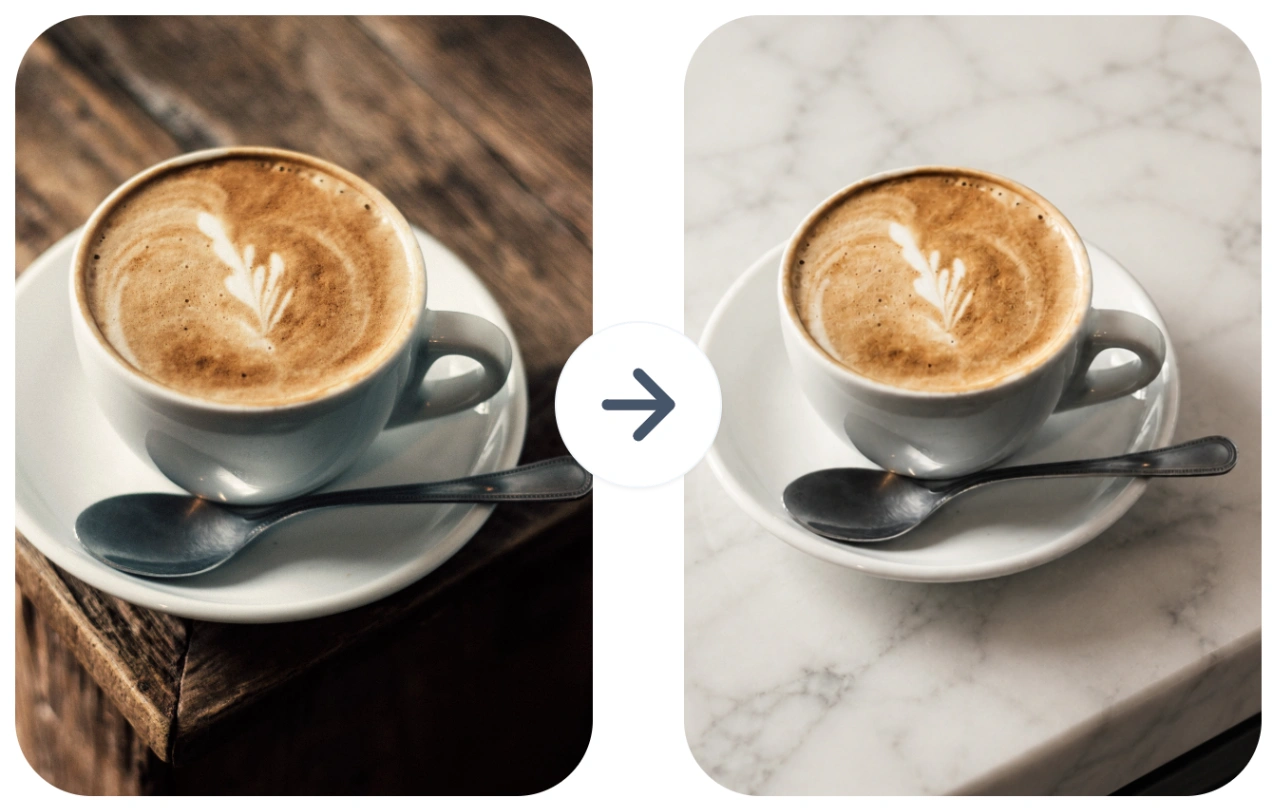
- Background Replacement: Select the background and prompt: "Keep the coffee cup but replace the wooden table with a white marble kitchen counter."
- Object Removal or Addition: Select an empty space on a generated desk and prompt: "Add a modern sleek silver laptop."
- Text Correction: Notice a typo on a generated sign? Simply mask the text and prompt: "Change the text on the label from 'Rost' to 'Roast'."
5. Advanced Use Cases & Copy-Paste Prompts
Let’s put the blueprint into action. Here are a few high-converting prompts you can copy and paste right now.
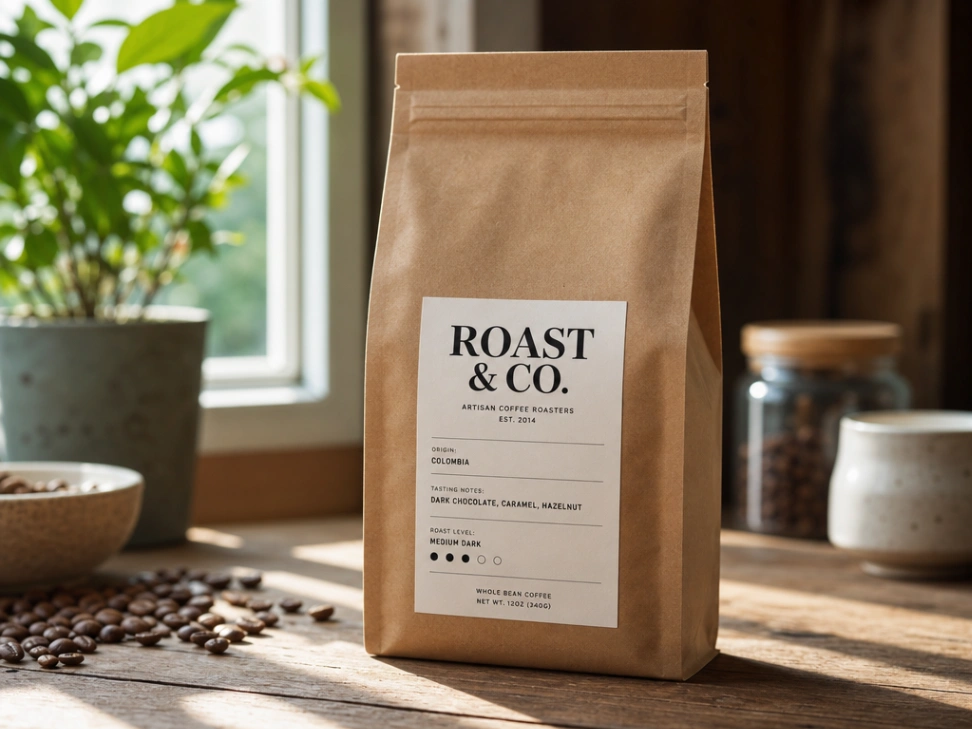
Use Case 1: E-commerce Product Packaging
Prompt:
A minimalist, eco-friendly kraft paper coffee bag sitting on a rustic wooden table. Morning sunlight filtering through a nearby window, casting soft shadows. The packaging features a clean, modern label that reads "ROAST & CO." in bold, elegant typography. Photorealistic, 85mm macro lens, highly detailed.
Use Case 2: App UI and Software Mockups
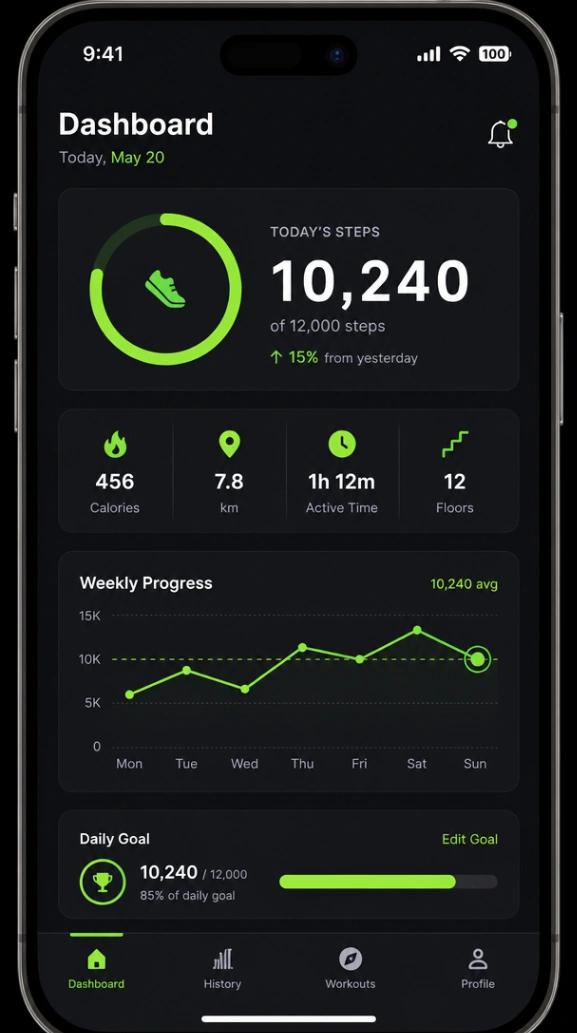
GPT Image 2 excels at creating flat designs and structural interfaces, making it perfect for developers and UI/UX designers.
Prompt:
A high-fidelity UI screenshot of a modern fitness tracking app on a smartphone screen. Dark mode interface with neon green accent colors. The dashboard displays a graph labeled "Weekly Progress", and text reading "10,240 Steps". Clean, vector-style flat design.
Use Case 3: Marketing Campaign Posters
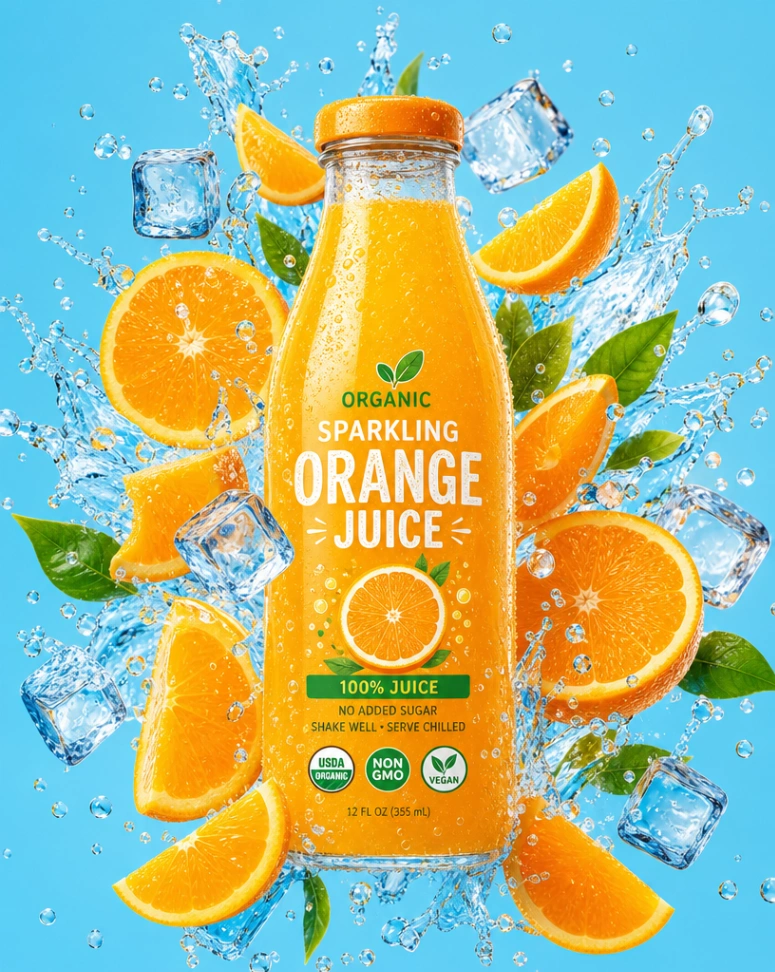
If you are running an advertising campaign, you can generate a complete poster text within seconds.
Prompt:
Vibrant pop-art style commercial beverage AI poster for an organic sparkling orange juice bottle. The bottle is placed in the center of a dynamic explosion of fresh orange slices, splashing water droplets, and ice cubes. Solid pastel blue background. Cheerful, mouth-watering, crisp details, highly saturated colors.
🎁 Need more marketing assets? Don't start from scratch. Grab our curated list of 12 Product Campaign Poster Prompts for GPT Image 2 and instantly elevate your brand's visuals.
6. GPT Image 2 vs. The Competition
Is GPT Image 2 the only game in town? While models like Midjourney and Stable Diffusion exist, OpenAI Image 2 currently holds the crown for prompt adherence and multi-lingual text generation.
But what about rising stars like Nano Banana 2? If you are generating stylized 3D art or anime-style graphics, you might be wondering which AI to choose. We did a rigorous, side-by-side test. Read our deep-dive analysis: GPT Image 2 vs Nano Banana 2: Which is Better? to see the ultimate showdown.
7. Frequently Asked Questions (FAQ)
Q: Can GPT Image 2 generate text accurately?
Yes! This is its standout feature. By placing your desired text in quotation marks within your prompt, GPT Image 2 can render it perfectly on signs, clothing, UI mockups, and products.
Q: What is the best aspect ratio to use?
By default, it generates square images (1024x1024). However, the GPT Image model supports a diverse range of aspect ratios; you can easily specify widescreen (16:9), vertical (9:16), or other common formats, thereby optimizing your images for use as YouTube thumbnails or for platforms like TikTok and Reels.
Q: Can I use the generated images commercially?
Yes. Under the current terms of service, users retain full commercial rights to the images they generate, meaning you can use them for ads, merchandise, and website design.
Ready to Unleash Your Creativity?
Learning how to use GPT Image 2 is like unlocking a professional photography studio and a graphic design agency right on your laptop. Stop wrestling with complicated interfaces and start creating.
Head over to GPT Image 2 right now and generate your first masterpiece in seconds.
About the Author:
Jsam, AI Tech Expert
Jsam is a seasoned AI Prompt Engineer and Visual Designer with over 5 years of experience in generative AI technologies. He specializes in optimizing AI workflows for digital marketers and creatives, helping them bridge the gap between imagination and production-ready assets.