
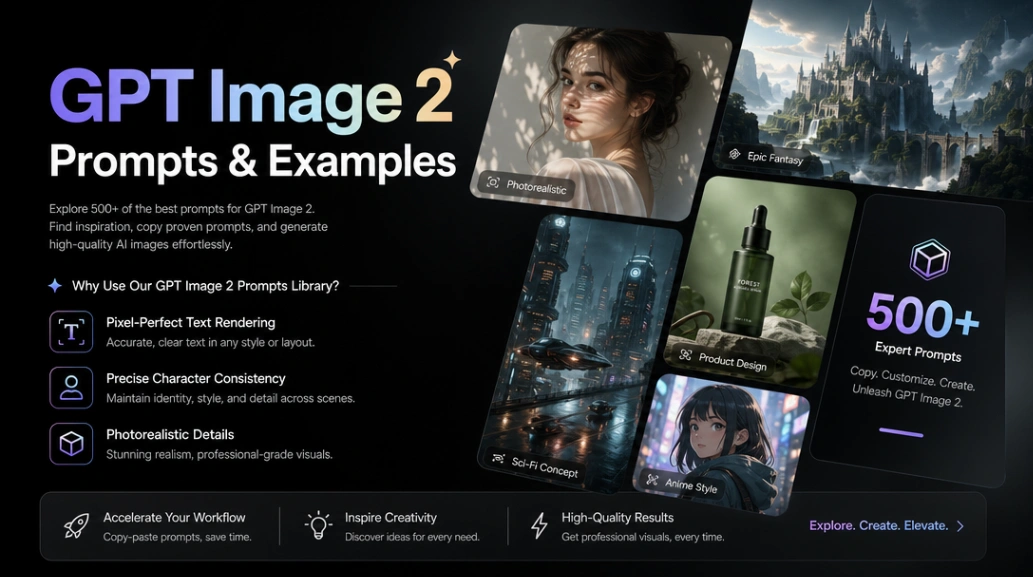
The Ultimate Guide: How to Write the Best GPT Image 2 Prompt
Based on official OpenAI documentation and extensive community testing, creating a production-grade GPT Image 2 prompt requires a structured approach. Here is the golden formula for consistent, high-fidelity results:
The "Structure + Goal" Prompting Framework
- 1. Background / Scene: Start by defining the environment (e.g., "A cozy Christmas scene near a window with falling snow").
- 2. Subject: Describe the main focus in detail, including scale, pose, and action (e.g., "An old teddy bear sitting inside a keepsake box, slightly worn fur").
- 3. Key Details & Constraints: Specify exactly what to include and exclude (e.g., "No extra text, no watermarks, plain white opaque background").
- 4. Style & Medium: Explicitly state the format, such as "Photorealistic, 35mm film photograph, medium close-up at eye level" or "Flat vector illustration".
Advanced GPT Image 2 Prompt Parameters & Resolutions
Beyond the text, mastering the parameters of your GPT Image 2 prompt is crucial for controlling latency and visual quality.
Quality Trade-offs (outputQuality)
GPT Image 2 supports low, medium, and high settings. For rapid ideation, use `low`. When your GPT Image 2 prompt includes dense text (like infographics), precise branding, or macro details, always switch to `high`.
Best Image Sizes
The model supports custom sizing. Popular resolutions include:
• HD Portrait: 1024x1536
• HD Landscape: 1536x1024
• 2K / QHD: 2560x1440 (Upper reliability boundary)
Frequently Asked Questions (FAQ)
Q: How do I generate perfect text in my GPT Image 2 prompts?
To achieve pixel-perfect text rendering in English, Chinese, or Japanese, enclose the exact wording in quotes or ALL CAPS within your prompt. Use strict constraints like "EXACT, verbatim, no extra characters" and clearly define the typography style (e.g., bold sans-serif, neon lights). Setting the output quality to `high` is also highly recommended for text-heavy images.
Q: How can I maintain character consistency across multiple images?
For storyboards and comic strips, use a "character anchor" approach. Write a baseline GPT Image 2 prompt that details the character's exact proportions, clothing, and colors (e.g., "green hooded tunic, soft brown boots"). Copy and paste this exact character description into every new prompt, changing only the environment or action to prevent character drift.
Q: What is the best way to prompt for photorealism?
Write your prompt as if a real photo is being captured. Include explicit photography language such as "shot on 35mm film," "50mm lens," "shallow depth of field," and "natural coastal daylight." Explicitly ask for real-world imperfections like skin texture, pores, or fabric wear, and explicitly state "no glamorization, no heavy retouching" to avoid a plastic, AI-generated look.
Q: How do I edit or composite an image using GPT Image 2?
When using edit or multi-image compositing, clarity is key. Explicitly state what to change and what to preserve. For example: "Change ONLY the white chairs to wood. Preserve camera angle, room lighting, floor shadows, and surrounding objects." Repeating the preserve list ensures surgical edits without altering the background.